
WordPress
Connect a self-hosted WordPress site without installing a plugin or sharing your password.
Use this option when WordPress is installed on your own hosting account. If you normally manage the site through WordPress.com, use the separate WordPress.com guide.
Before you start
- The site must use HTTPS and normally run WordPress 5.6 or later.
- Sign in with a WordPress administrator or editor who can publish posts.
- Application Passwords and the WordPress REST API must be available.
- A firewall or security plugin must allow the
Authorizationheader and requests to/wp-json/.
Connect WordPress
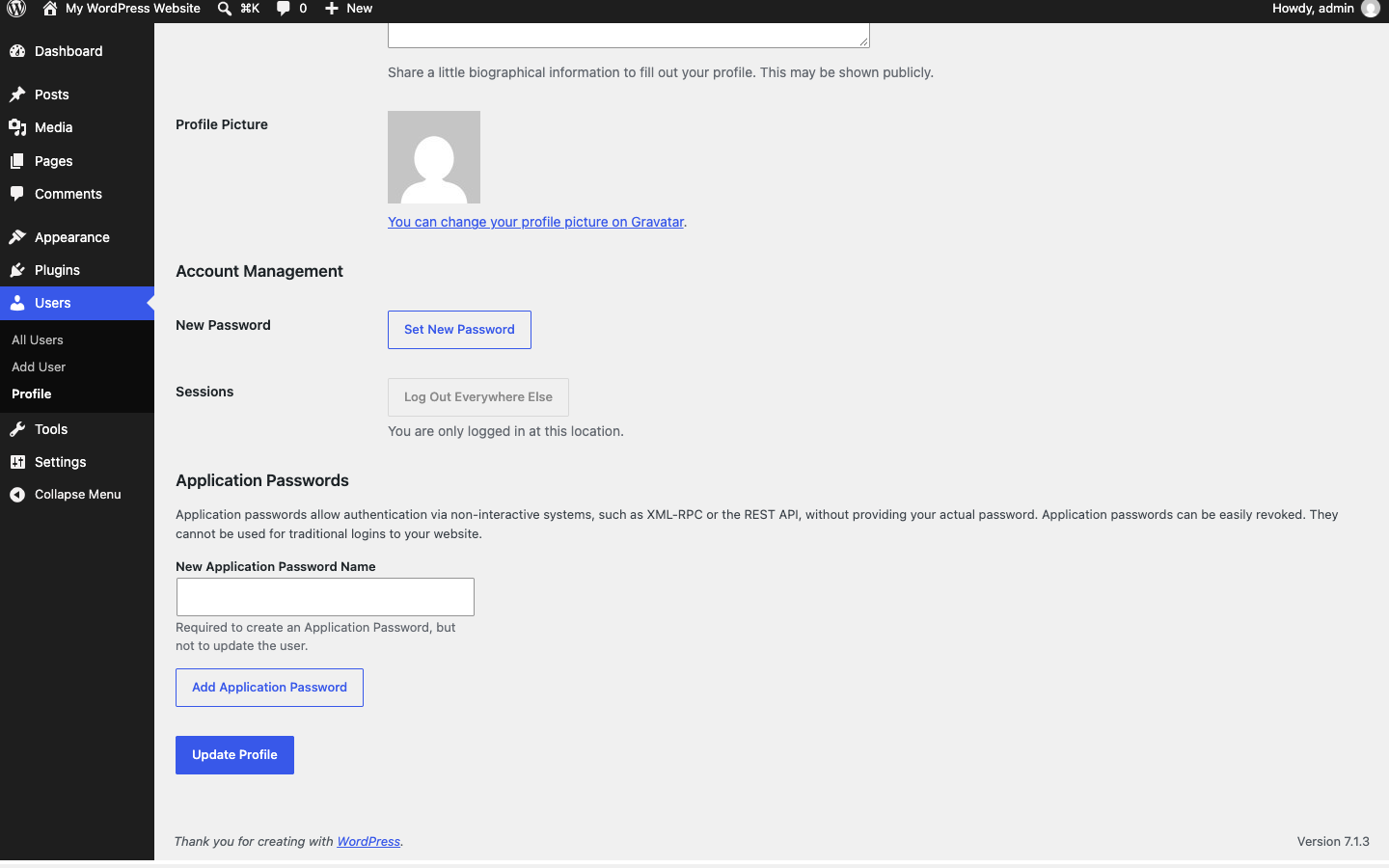
WordPress keeps revocable credentials under Users → Profile → Application Passwords. This is the screen you can return to later to review or revoke Surpasso without changing your normal login password. See the official WordPress Application Passwords guide.
- Open Workspace → Integrations in Surpasso and choose WordPress.
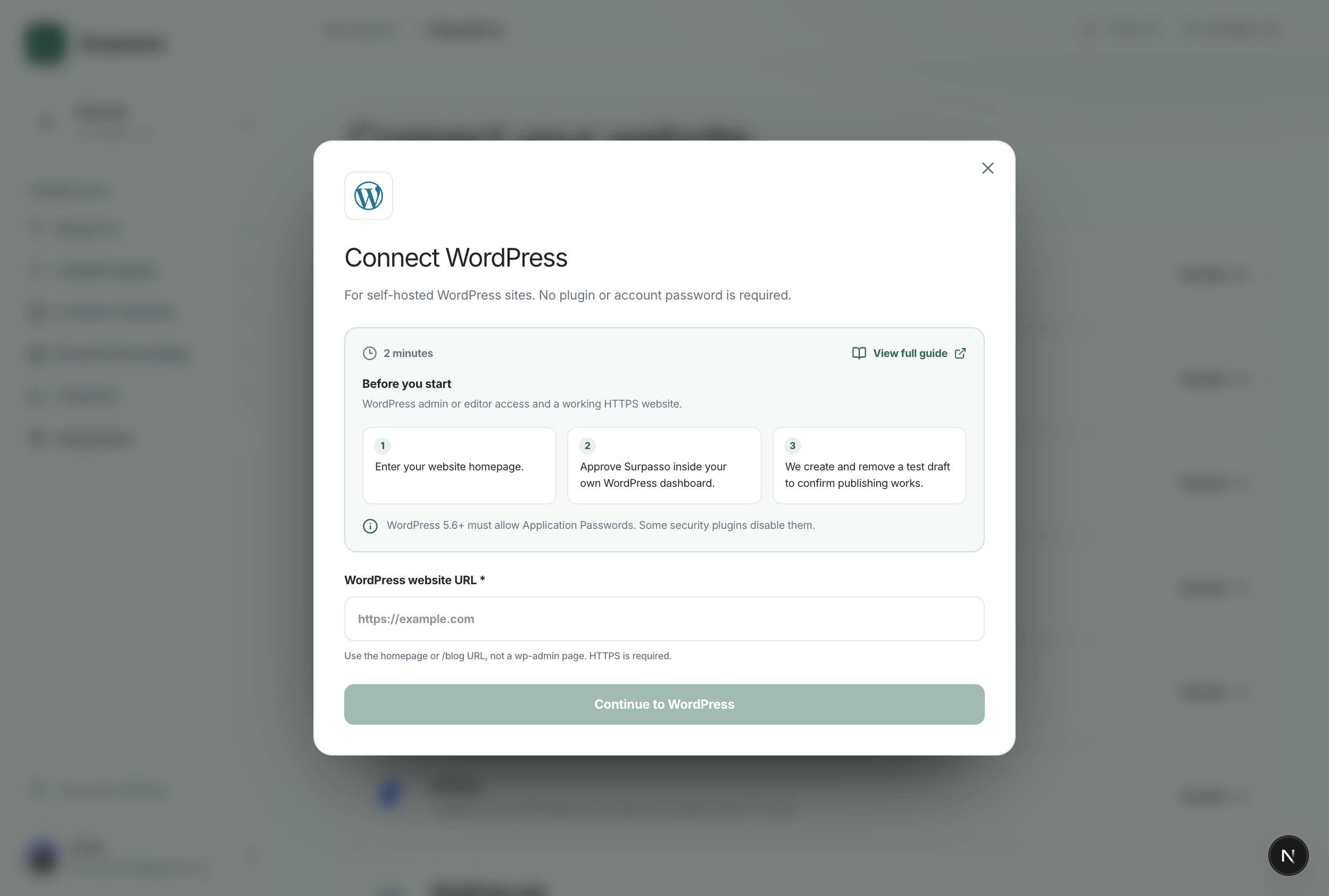
- Enter the public homepage or blog URL, such as
https://example.comorhttps://example.com/blog. Do not paste awp-adminURL. - Select Continue to WordPress.
- Sign in to your own WordPress dashboard and approve Surpasso.
- Return to Surpasso. We create and remove a test draft before marking the connection ready.
After preparing WordPress, enter the public site address in Surpasso:
The connection test checks that Surpasso can read your WordPress account, create a private draft, update it, and remove it. Nothing is published during the test. The connection is marked Ready only after all four checks pass.
WordPress creates a separate, revocable credential for Surpasso. Your normal WordPress password is never shared. You can revoke only this credential later under Users → Profile → Application Passwords.
What happens after connecting
- Create draft: Surpasso sends the title, body, excerpt, URL slug, categories, tags, and available images to WordPress.
- Publish: the same draft is made public; Surpasso keeps its WordPress post ID so it does not create a duplicate.
- Update: later edits are applied to that same post and keep its existing draft or published state.
- Delete: delete the post in WordPress. Removing the connection only revokes future access; it does not remove existing posts.
Each connection is owned by the signed-in Surpasso account and tied to the selected brand. Its revocable WordPress credential is not reused for another customer or brand.
If the approval page does not open
- Confirm that the site URL is correct and uses HTTPS.
- Check that Application Passwords and the REST API are enabled.
- Open
https://your-domain.example/wp-json/and confirm it returns WordPress REST API information without a login wall or redirect loop. - Review security plugins, firewalls, or hosting rules that may block external
API requests or remove the
Authorizationheader. - Sign in with an administrator if an editor cannot approve the connection.
After changing a security setting, return to Surpasso and test the connection again.