
Webflow
Connect a Webflow CMS Collection and map its article fields.
Surpasso writes native CMS items into an existing Webflow Collection. It does not change the site's layout, components, or visual design.
What you need
Use a Webflow account that can authorize apps for the destination site. The site must contain a CMS Collection for blog posts with:
- a Plain Text field for the article title;
- the Collection's Slug field for the article URL; and
- a Rich Text field for the article body.
Optional fields can receive the summary, featured image, SEO title, SEO description, author, and tags. They can be left unmapped.
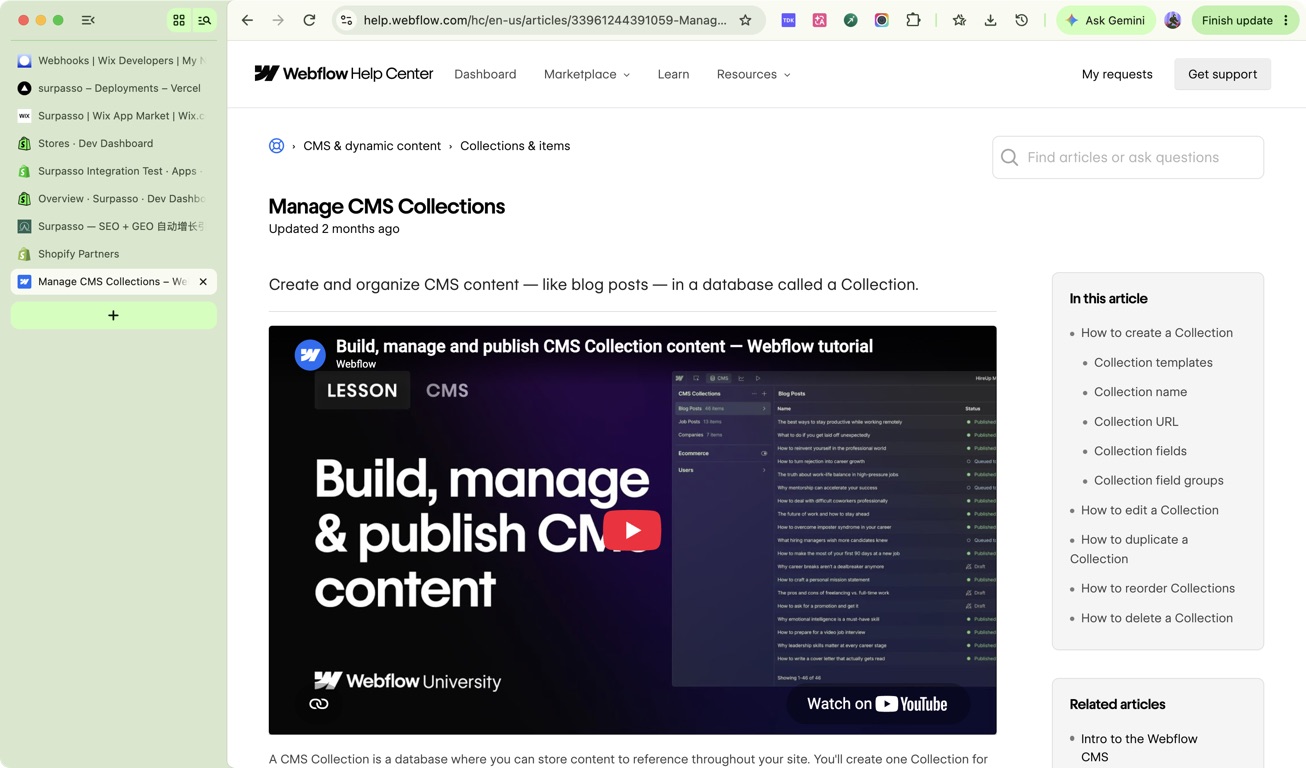
In Webflow, open the CMS tab, choose the blog Collection, then open its settings to review the fields. Name and Slug are built in; add a Rich Text field for the article body. Webflow's official CMS Collection guide shows the exact create-and-edit path and supported field types.
Step 1: Authorize the site
Open Workspace → Integrations, choose Webflow, and continue to Webflow. Select the site that should receive articles and approve access. Surpasso only requests permission to view sites and manage CMS content.
Step 2: Choose the publishing destination
After returning to Surpasso:
- Choose the Webflow site.
- Choose the Blog Collection.
- Check the three required field matches: Article title, Article URL, and Article body.
Surpasso suggests these matches separately for every connected website. Common
field names such as Name, Slug, Body, Content, or Article are usually
matched automatically. If a site uses custom names, choose the correct field
once from the list.
Each Webflow field can receive only one Surpasso value, and Surpasso only shows compatible field types. One customer's mapping is never reused for another customer.
Step 3: Add optional fields and test
Expand the optional fields if you want to send the summary, image, SEO data, author, or tags. Save the selection and wait for the connection test.
The test confirms that Webflow still grants access, the selected site and Collection exist, and all required fields are valid. It does not publish an article during setup.
This screenshot is the Surpasso mapping result after the Collection has already been prepared in Webflow:

Drafts, publishing, updates, and deletion
- Create website draft: adds a staged CMS item that is not public.
- Publish: writes the latest Surpasso fields, then publishes that item.
- Update a published article: writes the latest content first and republishes the same CMS item, so its URL and identity are preserved.
- Delete: deleting an article in Surpasso does not currently delete the Webflow CMS item. Delete it in Webflow when needed.
If no suitable Collection appears, create or update the Collection in Webflow, then reconnect. If automatic matching leaves a required field empty, confirm that the title and slug use Plain Text and the body uses Rich Text.