
WordPress.com
Connect a WordPress.com-hosted or compatible Jetpack site through official authorization.
Use this option for a website hosted on WordPress.com, or a compatible site connected to WordPress.com through Jetpack. For WordPress installed on your own hosting account, use the WordPress guide.
What you need
- A WordPress.com account that can manage posts and media on the destination site.
- The destination site must already appear under My Sites in that account.
You do not need to create a developer app, copy an API key, enter the site URL, or create an Application Password.
Step 1: Start in Surpasso
Open Workspace → Integrations, choose WordPress.com, then select Continue to WordPress.com.
Step 2: Approve the correct site
WordPress.com asks you to sign in if needed. Choose the site that should receive Surpasso articles, review the requested access, and approve it. Use the account that owns or manages that site.
Surpasso requests access to articles and media so it can create drafts, publish articles, and upload article images. It never receives your WordPress.com password.
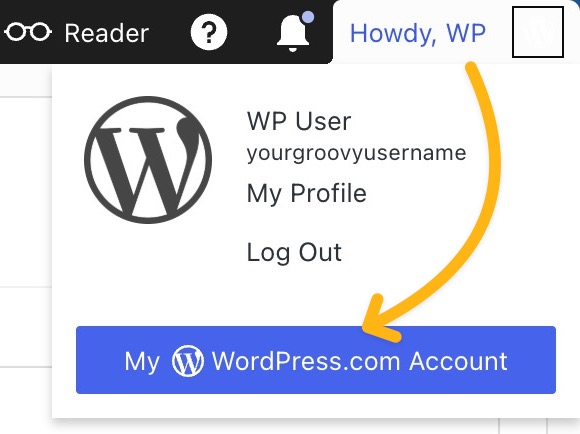
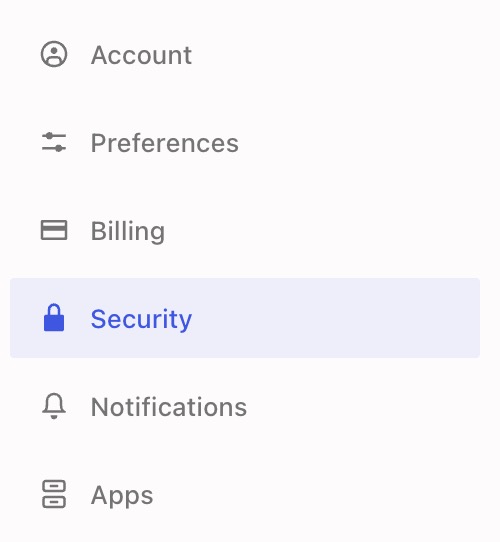
WordPress.com account settings are opened from the profile menu. To review or revoke the authorization later, open Security → Connected applications. The official WordPress.com connected-app guide also explains how to verify and remove third-party access.
Step 3: Wait for the connection test
After WordPress.com returns you to Surpasso, the connection test creates a private test draft and removes it immediately. The connection is marked Ready only when both actions succeed.
The following Surpasso screen is the connection result, not the WordPress.com authorization step:

What happens after connecting
- Create website draft: adds a private draft to the selected site.
- Publish: publishes the latest Surpasso article and returns its public URL.
- Update: sends the latest saved Surpasso version to the same WordPress.com post.
- Delete: deleting an article in Surpasso does not currently delete the WordPress.com post. Delete it from WordPress.com when needed.
WordPress.com uses a standard article format, so there is no field-mapping step.
If the site is missing
Confirm that you used the correct WordPress.com account and that the site is hosted by WordPress.com or correctly connected through Jetpack. If another person owns the site, ask them to grant your account permission to manage posts and media, then reconnect.
If the connection test fails, remove Surpasso from WordPress.com's connected applications, return to Surpasso, and connect again with the intended account.